On your phone
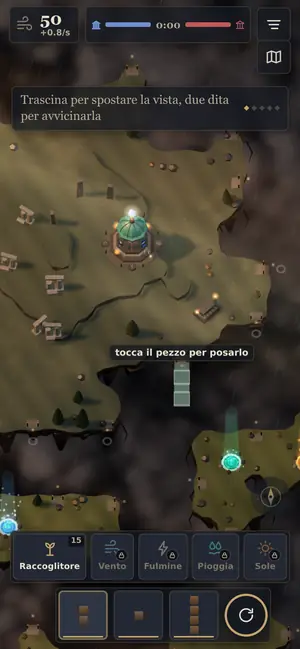
Two taps to place, one finger to move the view, two fingers to zoom.
Placing a bridge
- Tap near a light on the edge of your island or at the tip of one of your bridges. The piece appears there: pale if you can place it, red with the reason if not.
- Tap the piece to place it. A tap somewhere else moves it.
The Rotate button turns the piece. Tap one of the three pieces in the Rack to pick it; the button next to it swaps it. After you place it, Undo shows up for a few seconds.
Building
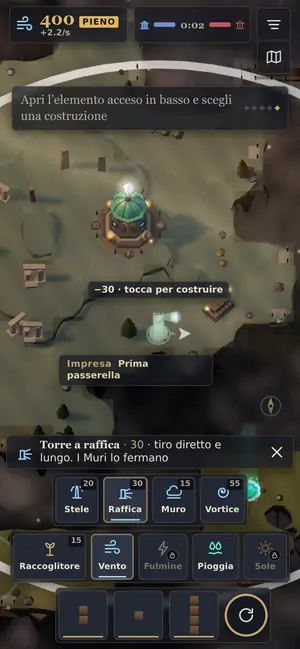
- Tap a card in the bar at the bottom. On the phone the buildings are in Build, at the bottom left: tap it and the drawer with the elements opens; for towers, open the group of the element. The drawer closes as soon as you choose, and the card next to Build puts the last building you chose back in your hand. The game puts the building right away in the valid spot closest to the center of the view, and lights up the light of its element.
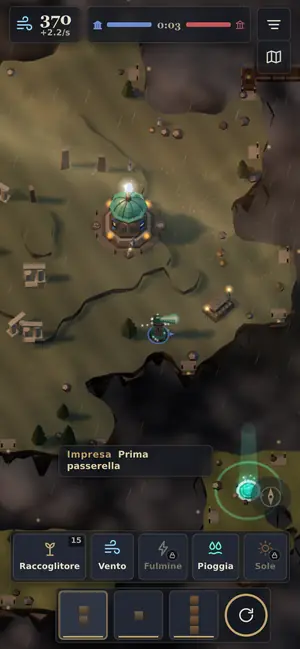
- Tap the building to place it. If you don’t like the spot, tap somewhere else and then confirm. For a tower you see how far it shoots: a cross for cross towers, a circle for circle towers (see Towers and targets).
Above the bar a line tells you what you chose, what it costs and what it’s for, with an X to drop it. For the Collector you can also double-tap the spring.
Other taps
- Tap one of your damaged buildings to repair it.
- Tap one of your Collectors to choose its carriers.
- Hold down on one of your bridges to take it down: see Decay and Take down.
- Tap a wind bubble over your territory to take it.
- The specials are in the column on the right: see Specials.
Moving the view
- One finger moves the view. If you flick it, the view glides a little more and stops; a tap stops it at once.
- Two fingers spreading apart or pinching together zoom.
- Two fingers turning rotate the view, if two-finger rotation is on in the Settings. On the phone it starts off.
- The compass takes you back to your temple. A second tap switches from the top view to the isometric one. Held down, it straightens the view on the grid.
- The Minimap opens from the button with the map; on the phone tap the drop at the top, then Minimap.
The menu
The button at the top right opens the match menu: Resume, Sound, Settings, How to play, Leave the match. Against the computer the match stops while the menu is open. The phone’s back button works the way you expect: see The back button.
See also
- Mentioned here or mentioning this page
- Collector · Decay and Take down · Minimap · Rack · Settings · Specials · The back button · Towers and targets
What’s new
- v24.3 On a phone the bridge bar goes down to the edge, beside the comments button: the empty strip under the bar is gone and you see more of the map.
- v24.3 Every command of the bar says its name: at once with the mouse over it, or by holding a finger on the phone. Cards with a Bestiary page have a small brass «i» that opens it: what it is, what it costs, what it is strong against and what beats it.
- v23.2 The tale has a soundtrack: strings, harp and the four-note theme, one note for each god, with the wind, the rain, the stones, the footsteps and Refolo’s wings. It starts at the first tap.
- v23.2 If the tale slows down on your phone, it lowers the graphics quality by itself.
- v22.5 On phones, messages move down one line when the weather tag is showing: “Tailwind” no longer covers “You destroyed a Collector”.
- v22.3 On phones, sound shouldn’t stutter in long battles anymore. The game counts how many sounds are playing at once and, on Low and Medium quality, skips the smaller shots when there are too many. Reverb costs less, and the phone keeps a bit more sound ready in advance.
- v22.1 On phones the bottom bar sits a bit higher and leaves the corner of the feedback button free; it used to cover the “B” in “Build”. In the menu, the “Explore and set up” section moves in from the same corner.
- v22.1 Tutorial, first lesson: to zoom in, one turn of the scroll wheel or a short two-finger gesture is enough. If nothing happens after a few seconds, Refolo explains the gesture instead of saying “tap right where it points”.
- v22.1 The “New version available” notice is smaller and sits in a corner: bottom right on computers, at the top on phones.
- v22 With an account you get your progress back on another phone or computer: just “Sign in”. If you had also played there without an account, you choose which progress to keep.
- v22 From your Profile you can sign out of your account or delete it, along with everything the game keeps online. Without an account you can delete the online data for this phone or computer. The privacy policy is at /privacy.
- v22 On phones the map is clear again. At the top there’s a single bar: wind, the two temples with the clock, a drop with your faith, and the menu. Tap the drop to open faith and followers, the God, Cirro, “Tend the village” and the minimap; when a prayer arrives, the drop lights up.
- v22 At the bottom, “Build” opens the elements and buildings and closes as soon as you choose. Next to it stays the last building you chose: one tap and it’s in your hand again. On computers the elements are always in view.
- v21 Under the God’s line is Cirro’s: what he’s doing, four small bars for how much he likes repairing, escorting, hitting and gathering, and two buttons. “Good job” makes him do what he just did more often, “No” less often. Tap his name to see him on the map.
- v21 Cirro never gets stronger. Between matches he remembers his lessons and only grows in looks: bigger after 10 matches and after 30, feather tips in the color of the element you use most, a light belly if he repairs a lot, dark wings if he hits a lot. Cirro stays saved on this phone or computer, along with your progress on the route.
- v21 Miracle signs: in the Miracle cards, tap “Draw a sign”, the cards close and the map stays clear. Draw a drop (Stone Cloud), a bolt (Landslide), a curl (Current) or a ray (Dawn Bridge): the miracle opens already aimed, and one tap on its shadow casts it. “Cancel” goes back. You can still tap a card, like before.
- v21 For now there’s no reading aloud in the tutorial and the tale: the phone or computer voice read badly, and the button is gone.
- v20 The village flag is bigger and you can see it at night too; after you tap, a message says which way the village will grow. Huts, houses and great houses have three different sizes.
- v18 Weaves: two buildings of different elements, three cells apart or less, together do something they can’t do alone. There are six, one for each pair of elements: Charged Air, Squall, Blaze, Nimbus, Glare, Rainbow. A line of dots joins them; tap one of the two to read what it does.
- v17 Tap one of your nests to send the flyers to a spot, or let them choose on their own.
- v17 Who carries the wind: tap a Collector and choose between the Veiled, Wind Runners (fast, carry little), Stonebearers (take a hit and repair the bridge), Sunwings (fly over the sky) and the Cart (slow, carries a lot).
- v17 Miracles: when you choose a card, dots mark every place the miracle can go and the view moves to the closest one. A tap near a valid place picks it. If there’s no place at all, the card says so.
- v17 The bubble of your fallen wind is gray and can’t be tapped: only the enemy can take it. The rite says “1 sign left”.
- v16.1 Online match is easier to read: at the top the ranked match with its button, then open matches with “Create match”, then “Challenge a friend” with the code box, “Join” and the challenge link. On a phone you can see almost everything without scrolling.
- v16 To cast a miracle, choose the card, tap the target and tap again to confirm. Before it happens it’s announced for a few seconds, and both sides can see it. After a miracle the sky rests for 75 seconds.
- v15 An online match can be put on hold from the pause, if your opponent agrees. It picks up from the same point, even days later, on this phone or computer: you’ll find it in Online match, under matches on hold.
- v15 The page no longer zooms in: pinch and double tap only move the game view.
- v14 Messages are in one place only, under the top bar. Dangers stay as long as they last, the rest go away on their own. Tap a message to see where it happened. Hold it down, or press H, to read the latest ones again.
- v14 Building in two taps: choose the building and the game puts it in the closest valid spot. Tap the piece to build it. A line above the bar says what you chose, with an X to drop it.
- v14 Specials are in a column on the right. To cancel the one that’s ready to cast, tap it again, tap the X or press Esc.
- v14 Minimap: tap to go to a spot, drag to scroll, hold down to leave a signal of your own. On phones it opens from the map button. Size, corner and layers are chosen in Settings.
- v14 After a drag the view keeps sliding a little and stops with a tap. On computers: arrows or WASD, middle mouse button, Space to go back to the temple, U for the last event. Take down from the keyboard is now Delete.
- v14 The phone’s back button goes up one level: first it cancels what you chose, then it opens the pause. On the main menu it asks if you want to quit.
- v13 On the route map you see the worlds you won, the open one and the ones still locked. Tap a world to see its shape, level and reward.
- v13 Matches save themselves every half minute, when you pause and when you leave. From the menu, “Resume match” opens it again where you left it. In the pause, “Save and quit” puts it in one of three slots. The saved match stays on this phone or computer.
- v13 The Veiled can be hit, and the stronger enemies do it: whoever carries wind drops it for the one who shot. They pick the path with the least fire, if there is one. Tap one of your Collectors to send it more carriers, the normal ones or none.
- v12 With two fingers the game understands sooner what you want to do: zoom in or out, rotate or tilt, and it sticks with that gesture until you lift your fingers. A zoom no longer turns the view by mistake. In Settings you can turn off two-finger rotation, and the camera speed applies to rotation too.
- v11 The view starts from above, looking straight down at the map. On phones, two fingers rotating turn the view, and two fingers moving up or down tilt it; with a mouse, drag with the right button. The compass takes you back to the starting view or switches to the isometric one.
- v10 On phones the first tap shows the bridge piece where you tapped: green if it can be placed, red with the reason if it can’t. A tap on the piece builds it.
- v10 A tap somewhere else moves the piece, and rotating or changing it doesn’t make it disappear. With a mouse, one click is still enough.
- v06 After a building, the row of elements closes and you go back to bridges. On phones you aim the Collector and then build it, like towers.